How to Convert PowerPoint to SCORM eLearning – The Right Way
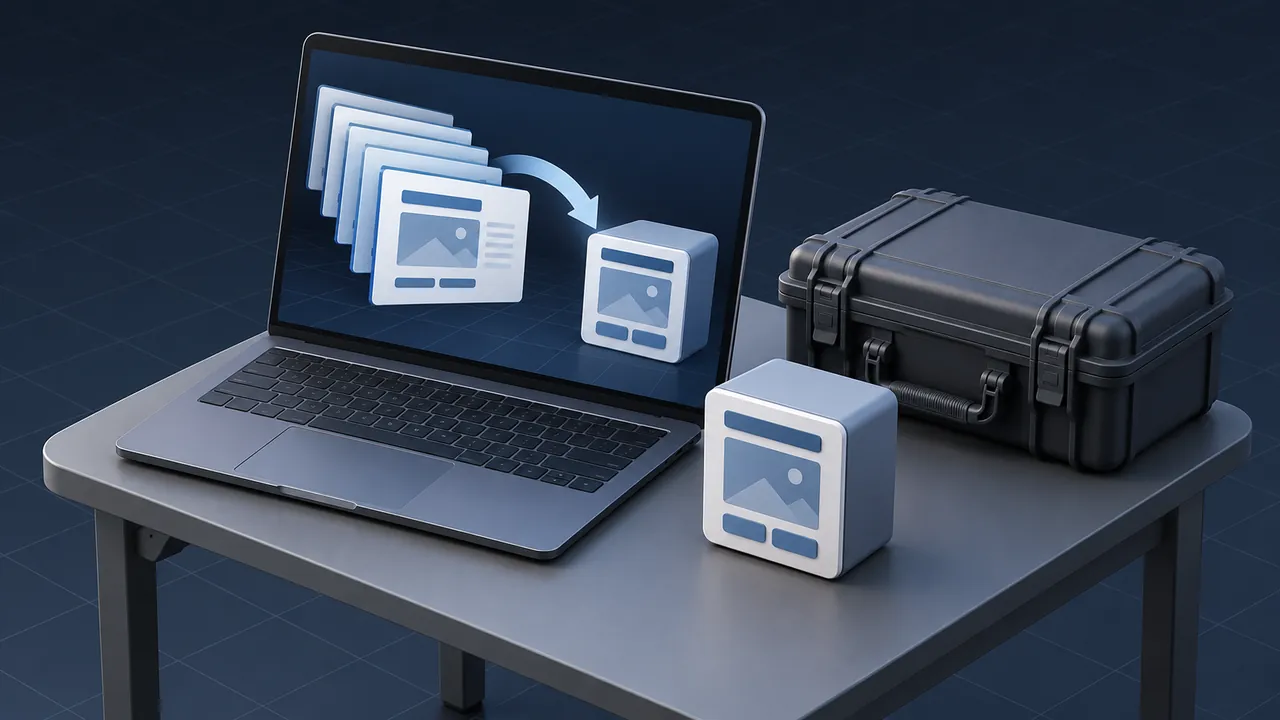
Someone hands you a 90-slide deck and announces that the LMS needs it by the end of the month. The classroom version worked because an experienced instructor stood in front of it and filled in the gaps. Now there is no instructor, only a learner, a screen and possibly a noisy break room. You could run the file through a converter and call it finished, but you already suspect that conversion is not the whole job. So how do you turn PowerPoint to SCORM in a way that actually trains people?
To convert PowerPoint to SCORM the right way, treat the deck as raw material, not a finished course: cut and rework the slides for self-paced learners, add the explanation the presenter used to give out loud, build short knowledge checks, then publish with an authoring tool that outputs a SCORM package and test it in your actual LMS. The conversion itself is the easy part; tools such as iSpring Suite and Articulate Storyline can publish a package your LMS can track. The difficult part is that most decks were designed to support a speaker, so without one they deliver only half a course.
What Does PowerPoint to SCORM Conversion Actually Mean?
It means packaging your slide content so a learning management system (LMS) can launch it and record what the learner did. SCORM, which stands for Sharable Content Object Reference Model, is a set of technical rules developed by the Advanced Distributed Learning (ADL) Initiative of the U.S. Department of Defense. Those rules let a course and an LMS communicate with each other in a predictable way.
A SCORM package is a zip file containing the HTML, images, audio and scripts that make up the course, plus a file called imsmanifest.xml that tells the LMS what is inside and how to launch it. Once the course is running, it reports data such as completion status, score and time spent back to the LMS. If you want the full technical picture, Rustici Software has a clear write-up on how SCORM works and how it compares to xAPI and cmi5.
Here is the part that confuses many people: a PowerPoint file cannot do any of that on its own. Uploading a .pptx to an LMS might let people view it, but the system usually has no record of whether anyone finished it, because conversion is the step that adds the tracking.
Should You Convert the Deck As-Is or Rework It First?
Rework it first, almost every time, because a classroom deck is really a set of prompts for a presenter. The real teaching lived in the instructor's head, in the stories they told, the questions people asked and the "now watch out for this" moments. When you remove the instructor, you are left with bullet points that have no explanation behind them.
Review the speaker notes before you do anything else. Experienced instructors often left their talking points there, and those notes are usually the most valuable source material in the file. If the notes are empty, you will need a subject matter expert (SME) to reconstruct what was said in the room.
Ask three questions about each slide:
- Does a learner need this to do the job, or was it there to fill time or set the mood?
- Can someone understand it with no one standing beside the screen?
- Is there a decision or task here that the learner should practice, not just read?
Most decks shrink considerably after this review, so a 90-slide classroom deck often becomes a much shorter course, sometimes divided into two or three modules. That reduction is a good sign, not a loss.
How to Convert PowerPoint to SCORM, Step by Step
The process below works with nearly any authoring tool, and the sequence matters more than the software.
1. Clean and Sort the Deck
Delete duplicate slides, agenda slides and anything that only makes sense in a live session ("Turn to your neighbor..."). Group the remaining content into topics, each of which will likely become a section or a short module. Check the deck for fonts that might not transfer, embedded video links that point to someone's desktop and images you may not have permission to use.
2. Write Objectives and Decide What Gets Tracked
Write two to five plain objectives that start with an action verb, like "Identify the three lockout points on the line." Then decide what "done" means: viewing every slide, passing a quiz with 80 percent, or both. Settle this decision now, because it determines how you configure the course and how the LMS reports it.
3. Choose Your Authoring Tool
Choose based on who will maintain the course and how interactive it needs to be; the table in the next section compares the common options.
4. Add the Missing Explanation
Turn the speaker notes into short narration or on-screen text, and limit each slide to one idea. If you add audio, provide captions or a transcript as well, because people take courses in loud shops, on job sites and in shared offices, and many of them will have the sound off.
5. Build Practice and Knowledge Checks
Add a question every few slides instead of relying on a single test at the end. Scenario questions ("A coworker skips step three. What do you do?") teach more than simple recall questions, especially when the feedback explains why an answer is correct or incorrect.
6. Set Tracking and Publish
Choose the SCORM version your LMS supports most reliably, usually SCORM 1.2 or SCORM 2004. Configure the completion and passing rules you decided in step two, then publish to a SCORM zip file.
7. Test in the Real LMS
Upload the package to a test area of your LMS and complete it the way a learner would, then repeat the process on a phone or tablet. The testing section below covers this in more detail.
Which Tools Convert PowerPoint to SCORM?
There are two main approaches, tools that work inside PowerPoint and tools that import PowerPoint into a separate authoring environment, and each one has its place.
| Approach | How it works | Best for | Watch out for |
|---|---|---|---|
| PowerPoint add-in (for example, iSpring Suite) | You build and edit in PowerPoint, add quizzes and narration through a ribbon, then publish to SCORM | Teams who already know PowerPoint well and want fast turnaround | Courses can stay slide-like; complex branching is harder |
| Import into a full authoring tool (for example, Articulate Storyline) | Slides come in as editable screens; you add triggers, layers, scenarios and quizzes | Courses that need real interaction or practice | Imported slides often need cleanup; steeper learning curve |
| Rebuild in a block-based tool | You use the deck as a script and rebuild content as responsive pages | Mobile-heavy audiences and text-rich content | More manual work up front; layout is less flexible |
| Upload the .pptx straight to the LMS | The LMS displays the file as a document | Reference material that does not need tracking | Little or no completion data; not really a course |
If your team lives in PowerPoint and the content is mostly explanation plus a quiz, an add-in like iSpring Suite is a sensible choice. If you need people to practice realistic decisions, a full authoring tool will serve you better over the life of the course.
What Usually Goes Wrong?
The same handful of problems appear in almost every conversion project, and recognizing them ahead of time saves an entire round of corrections.
- Completion never registers. The course is set to report "passed" but the LMS expects "completed," or the reverse. Match the settings to what your LMS reads.
- Animations break or play out of order. Fancy PowerPoint transitions do not always survive conversion. Simplify them.
- Embedded video fails. Links to local files or some streaming sites do not carry over. Embed the video file or host it somewhere your learners can reach.
- The package is huge. Uncompressed images and long audio files bloat the zip. Large files load slowly on weak connections, which matters for anyone at a remote site.
- Text is unreadable on small screens. Slides designed for a projector often use tiny fonts and crowded layouts.
- Nobody can update it. If the source files live on one person's laptop, the course dies when that person leaves. Store source files where the team can find them.
How Should You Test a SCORM Package Before Launch?
Test it in the environment where learners will actually use it. A course that runs perfectly in the authoring tool's preview can still fail in the LMS, because the LMS is the system that receives the tracking data.
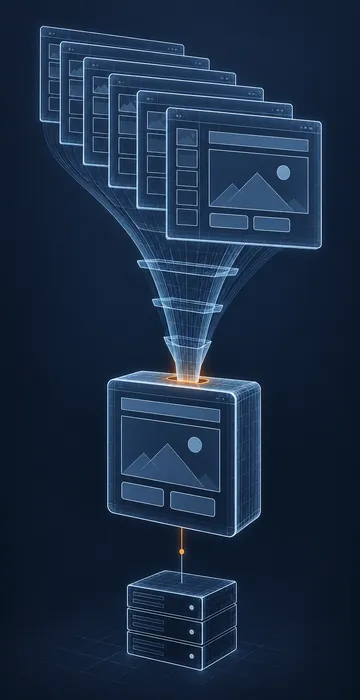
- Launch it in a test course on your LMS and complete it. Confirm the status, score and completion date show up in the learner record.
- Exit halfway and relaunch. Does it resume where you left off?
- Fail the quiz on purpose. Does the record show "failed" or "incomplete" the way you expect?
- Open it on a phone, a tablet and the oldest computer your learners use.
- Try it on a slow connection if any of your learners work at remote sites or in the field.
- Hand it to two or three real learners and watch where they get stuck.
Many teams also run packages through a neutral SCORM testing service before touching the production LMS, which helps them determine whether a problem originates in the course or in the LMS.
A quick rule: if you would not be comfortable taking the course yourself on a tablet during a lunch break, it is not ready.
When Is a Deck Not Enough to Start From?
Sometimes the deck represents only a small piece of the training. If the classroom version relied on hands-on demonstrations, group discussion or role play, slides alone will not carry the program. In that case you are really redesigning the program, and it helps to step back and plan how to convert classroom training to online as a whole rather than one file at a time.
Other warning signs include content that changes every few months, an audience divided across very different roles, or a skill that can only be verified by watching someone perform it. Those courses may need a blended approach, with a short online component followed by a hands-on sign-off.
The Deck Is a Script, Not a Course
Converting PowerPoint to SCORM is mostly about filling the gap the instructor used to fill, and publishing is the quick part. The real work is trimming the slides, adding the missing explanation, building practice activities and testing the package in your own LMS until the tracking is accurate.
If you are starting now, open the deck, read the speaker notes and remove every slide that does not help someone do the job. Then write down exactly what "complete" means. Those two decisions will shape everything else, and they will keep you from publishing a slideshow that checks a compliance box and teaches nothing. If you'd rather hand off the rebuild, turning decks into real courses is one of the services I offer, and I'm happy to look at yours first.