Microsoft Copilot for Training Teams – Everyday L&D Tasks

Your organization turned on Copilot, and the training team got licenses along with everyone else. A few people tried it once, got a so-so answer and went back to doing things the old way. Meanwhile the backlog of course updates, reports and meeting follow-ups keeps growing. Using Microsoft Copilot for training work is less about clever tricks and more about knowing which everyday tasks it handles well inside the apps you already live in. What can a training team do with Copilot, day to day?
A training team can use Microsoft 365 Copilot to draft and summarize course materials in Word, build first-draft slide decks in PowerPoint, capture meeting decisions in Teams, analyze completion and survey data in Excel, and clear email faster in Outlook. Its advantage over a standalone chatbot is that it works inside your Microsoft 365 apps and, depending on your license and settings, can draw on files and conversations you already have access to. The output is a draft, not a final product. Someone on the team still checks facts, tone and accuracy before anything reaches learners or leadership. Exactly which features you see depends on your organization's license and admin settings.
Microsoft Copilot for Training in Word
Word is where most training teams will feel the biggest everyday gains, because so much L&D (learning and development) work is writing. Copilot in Word can draft new content from a prompt, draw on reference files you point it to, rewrite selected text and summarize long documents.
Useful training tasks:
- Summarize a 50-page procedure into the key steps and warnings before an SME (subject matter expert) interview.
- Draft a design document from your project brief and kickoff notes.
- Turn rough bullet notes into a first-draft script.
- Rewrite dense policy text in plainer language for a job aid.
- Generate a first set of quiz questions from approved content, then review them closely.
A sample prompt: "Using the attached procedure, draft a one-page job aid for new technicians. Keep every warning and number exactly as written. Use numbered steps and short sentences." Then compare the draft to the source line by line. Copilot is good at structure and wording. Accuracy is your job.
PowerPoint: From Document to Deck
Copilot in PowerPoint can create a draft presentation from a prompt or from an existing document, add slides on a topic and summarize a long deck. For trainers, that means a facilitator deck or a kickoff presentation can go from blank to rough draft quickly.
The results work best as a starting structure. Expect to replace generic images, trim wordy slides and apply your template. A good habit is to ask for speaker notes along with the slides, since facilitators often need the notes more than the slides themselves. For instructor-led sessions, ask it to add a discussion question or short activity every few slides, then edit those to fit your audience.
Teams: Meetings That Leave a Record
Copilot in Teams can summarize meetings, list action items and answer questions about what was discussed. It generally works from the meeting transcript, so transcription settings matter. Check your organization's policy and tell participants when transcription is on.
For training teams, this is especially helpful in SME interviews and review calls. Instead of typing notes while trying to listen, you can focus on the conversation and ask afterward, "What did the SME say were the most common mistakes new hires make?" or "List every change the reviewers agreed to for module two." Send the summary to attendees the same day and ask them to correct anything that's off.
Excel: Making Sense of Training Data
Copilot in Excel can help analyze data, suggest formulas, create charts and highlight patterns. It works best when your data sits in a clean, well-labeled table, so tidy your exports first.
Training data is a natural fit. Ask it to show completion rates by department from an LMS (learning management system) export, find the quiz questions most people miss, or group open-ended survey comments into themes. The question-level analysis is especially useful: if most learners miss the same question, either the content or the question needs work. Double-check any formula or figure that goes into a report for leadership.
Outlook and Copilot Chat
In Outlook, Copilot can summarize long email threads and draft replies. That's handy when you return from a week of facilitation to forty messages about a course update. Copilot Chat lets you ask questions and, depending on your setup, pull information from your work files and messages, such as "What did we decide about the onboarding course deadline?"
A Week of Everyday L&D Tasks
Here's how Copilot might fit into a typical training team week:
| Task | App | What Copilot does | What you check |
|---|---|---|---|
| Prepare for SME interview | Word | Summarizes source documents, drafts questions | Nothing important is missing |
| SME interview | Teams | Recaps decisions and action items | Accuracy of the recap |
| Draft facilitator deck | PowerPoint | Creates slides and notes from the outline | Content, template, images |
| Monthly completion report | Excel | Summarizes data, suggests charts | Formulas and figures |
| Catch up on a course thread | Outlook | Summarizes the thread, drafts a reply | Tone and commitments |
Does Copilot Replace Your Authoring Tool?
No. Copilot works inside Microsoft 365 apps, not inside eLearning authoring tools like Storyline, Captivate or Rise. Its job in a course project is upstream: drafting and refining the documents that feed the build, such as design documents, scripts, storyboards and quiz banks.
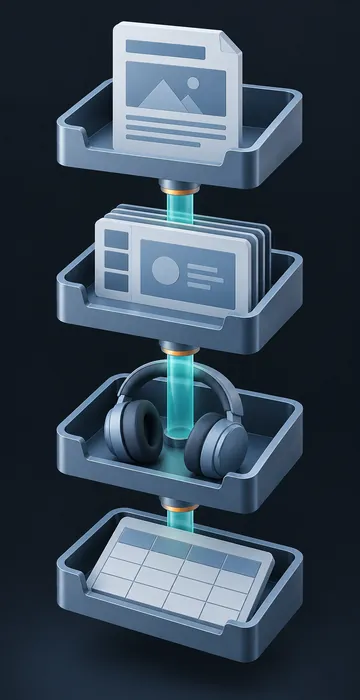
That's still a big deal, because those documents are where much of a designer's time goes. A practical pattern is to keep your storyboard template in Word, use Copilot to draft and tighten the content there, get it reviewed and approved, then hand the approved storyboard to the developer for the build. The authoring tool may have AI features of its own, and the two can work side by side. Just keep one approved source document, so nobody builds from an unreviewed draft.
What Should Training Teams Watch Out For?
Watch for three things: accuracy, permissions and over-trust. Copilot can produce confident text with wrong details, so every fact in training content gets checked against the source. It can also surface information from files you have access to, which makes good file permissions important. If old or overly broad sharing settings exist, fix them with IT.
Over-trust is the subtle one. When drafts arrive fast and look polished, it's tempting to skim them. Build the check into the process instead of relying on willpower: for example, "every Copilot-drafted script is compared with the source by the designer before SME review." Microsoft's own Work Trend Index research is worth a look if leadership wants context on how AI is changing everyday work.
Getting the Whole Team Comfortable
Teams get the most from Copilot when they practice on their own real tasks and share what works. Start a shared page of prompts that produced good results for your team's common jobs, and update it as people learn. Pair confident users with hesitant ones for a few sessions. Most people need only a handful of good examples to start using it daily.
If you want a structured approach, our plan for AI upskilling for training teams lays out a 90-day path from first experiments to consistent, reviewed workflows.
Make Microsoft Copilot for Training Part of the Routine
Microsoft Copilot for training teams works best on the everyday tasks you already do in Word, PowerPoint, Teams, Excel and Outlook: summarizing, drafting, recapping and analyzing. It speeds up the first draft. Your team supplies accuracy, judgment and knowledge of your learners.
Choose one recurring task, such as your next SME interview recap or monthly completion report, and run it through Copilot. Note how long it took and what you had to fix. That small test will show you where Copilot earns a permanent spot in your team's routine.